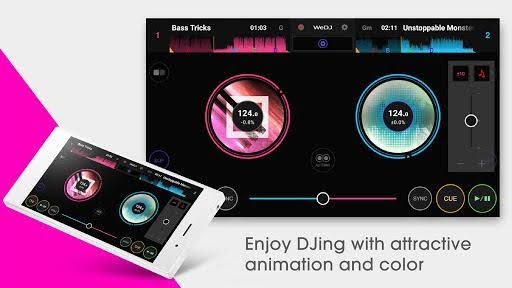
Open WeDJ and the first thing that hits you is how little it tries to hide. Two decks, two waveforms stacked in the middle, jog wheels that take up most of the lower half of the screen, and a crossfader sitting between them. No tutorial wall, no onboarding carousel asking what kind of DJ you want to be. Load a track on each side and you’re mixing.
That’s the pitch from the app, published under the name Pioneer DJ Corporation, and it holds up. The layout borrows directly from hardware conventions: play and cue buttons where your thumbs expect them, tempo sliders down the sides, a performance pad grid that switches modes. Anyone who has stood behind a controller will read this screen in about four seconds.
The two-deck layout reads like a scaled-down controller
The waveforms run horizontally across the center, color-coded so you can see where the bass drops out and where a vocal section starts. They scroll toward a playhead in the middle. It’s the standard view, and it works, though on a phone the vertical space is tight enough that the pads and the EQ section end up competing.
Jog wheels respond to drag. You can nudge a track forward, scratch a little, or hold to pause the platter. On a touchscreen this is fine for nudging and mostly novelty for scratching, since there’s no resistance and no sense of where the platter actually sits under your finger.
Sync is a button, not a philosophy.
Tap it and the two tracks lock in time. Auto Gain handles the volume mismatch between a loud master and a quiet bandcamp rip, which saves you from the classic mistake of bringing in the second track twenty percent too hot.
What the performance pads give you
The pad grid is where the app stops being a toy. You get Hot Cues for jumping to a drop or a vocal entry, loop controls for stretching a breakdown, Pad FX for one-shot effects tied to each pad, and Combo FX that stack more than one effect from a single press.
- Hot Cues: set markers on a track and trigger them live, useful for restarting a drop or chopping an intro
- Loops: grab a bar or four and hold a section while you prep the other deck
- Pad FX: assign effects to pads so a filter sweep or echo fires without hunting through a menu
- Combo FX: layer effects together, which gets you close to the big transition sounds in a festival set
- Automix: hands off entirely, the app beat-matches and transitions for you
Automix deserves a note. It’s the feature DJs sneer at and then quietly use at a house party when they want to eat something. It isn’t creative, the transitions are generic, but it keeps music playing.
Running WeDJ for PC changes how the pads feel
This is an Android app, so a desktop run means an Android emulator doing the translation, and the practical difference is mouse input replacing multi-touch. That matters more here than in most apps, because DJing is a two-hands activity: you want a finger on a loop while the other hand rides the crossfader.
Some emulators let you map keyboard keys to on-screen positions, which gets you closer to a real workflow. Mapping four keys to four hot cues is the single most useful thing you can do once the emulator is set up, and that setup itself, picking an emulator, installing WeDJ, and signing in, is the part laid out in WeDJ for PC.
The upside is screen real estate. On a 24-inch monitor the waveforms are long, the beat grid is legible, and you can see a phrase coming thirty seconds out instead of eight. For practicing structure and transition timing, that visibility is worth the input compromise.
Audio latency is the catch. Emulated audio adds a delay between a pad press and the sound, usually small but noticeable on fast cue juggling. For beatmatching, looping and long blends, it’s fine. For anything percussive and precise, it’s frustrating.
Where the app earns its keep and where it doesn’t
The library side is straightforward: WeDJ pulls from the music on the device, so what you can play depends entirely on what you’ve loaded in. There’s no magic catalog, no infinite streaming shelf waiting for you. Sort your files first, name them properly, and the whole session goes smoother.
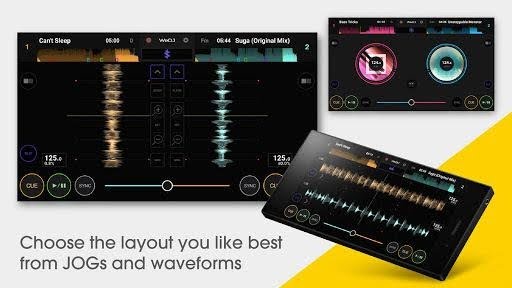
The app supports the DDJ-WeGO4 controller for tactile control, which is the intended end state. Plug in hardware and the touchscreen stops being the limiting factor. On a desktop setup that connection gets complicated by the emulation layer, so if you own a controller, a native DJ application on Windows is the saner pairing.
Where WeDJ shines is the gap between curiosity and commitment. If you’re an EDM fan who has watched a thousand sets and wondered whether you could blend two tracks, this answers that in an afternoon, with no hardware purchase and no 90-minute install.
Habits worth building early
Turn Sync off once in a while. The button is a crutch, and the ear training you get from manually nudging a track into place is the thing that transfers to real gear later. Same with Auto Gain: learn what clipping looks like on the meters before you let the app handle it forever.
Record your practice mixes if your setup allows it. Listening back is brutal and useful in equal measure.
One practical caveat before you start: check that your track files are actual local audio and not DRM-protected streaming cache, because nothing kills a session faster than four decks’ worth of songs that refuse to load.